
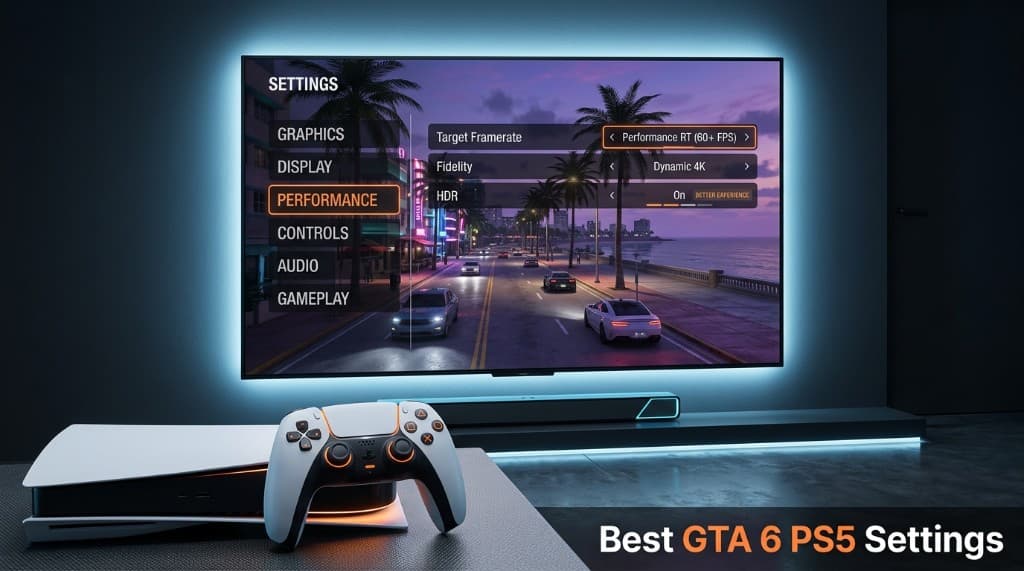
Optimizing your console settings ahead of Rockstar's November 19, 2026 launch ensures you get the absolute most out of Vice City and the broader state of Leonida. Because Grand Theft Auto VI pushes hardware boundaries with unprecedented crowd density, complex physics, and advanced global illumination, fine-tuning your console and in-game options is essential.
This guide breaks down the best configurations for your PlayStation 5 and PS5 Pro to balance fidelity, immersion, and responsiveness.
Understanding GTA 6 Graphics Modes on PS5
Rockstar's technical architecture for GTA 6 focuses heavily on delivering a dense, next-generation open world. With the game targeting a stable baseline experience, understanding how the display and graphics presets interact with your hardware will dictate your overall experience.
Base PS5
The standard console delivers a locked 30 FPS experience built around Rockstar's heavy simulation and dense crowd physics. Running at an internal 1440p resolution, it prioritizes maximum graphical fidelity, ray-traced global illumination, and intricate world detail over higher frame rates, offering reliable stability throughout Vice City.
PS5 Pro
Leveraging a significantly faster GPU and PlayStation Spectral Super Resolution (PSSR), the Pro model enhances visual clarity. While the CPU constraint keeps the baseline framework anchored, it utilizes upscaling to deliver cleaner 4K reconstruction, richer ray-traced reflections, and minimized shimmering on dense foliage and distant structures.
Best Display & Graphics Settings
Fine-tuning your graphics preserves visual clarity across Leonida’s diverse environments. Prioritizing performance-oriented adjustments helps eliminate screen tearing, smooths out fast driving sequences, and enhances target visibility during high-stakes encounters. Balancing your sharpness and lighting presets ensures vibrant neon colors pop cleanly against dark night skies without sacrificing overall response times.
Display Resolution
Set your resolution to automatic or match your display's native 4K output. Enable your TV's HDMI Game Mode or ALLM to eliminate input lag. Maintaining native scaling ensures UI elements remain crisp and prevents unnecessary upscaling artifacts from muddying distant urban skylines and sprawling highway vistas.
HDR (High Dynamic Range)
Enable HDR and carefully calibrate system-level peak brightness to preserve shadow details in dark alleys and prevent blown-out highlights under bright streetlamps. A properly balanced dynamic range makes Vice City’s vibrant neon lighting and sunset reflections pop with realistic contrast and immersive depth.
Motion Blur
Turn motion blur off or to a low setting. While developers use it to mask lower frame rates, disabling it delivers a much sharper image when rapidly spinning the camera or hurtling down crowded city streets in high-performance sports cars.
Field of View (FOV)
Increase your FOV slightly past the default to expand peripheral vision during on-foot exploration and intense shootouts. Avoid pushing it to extreme maximums, as wide distortions can warp proportions and make targeting distant enemies significantly harder during chaotic vehicular combat.
Best Controller & DualSense Settings
Fine-tuning your controller layout directly affects how smoothly you handle vehicular getaways and intense firefights. Tailoring your haptic feedback intensity, deadzones, and camera sensitivities prevents sluggish inputs and gives you precise control over Jason and Lucia. Balancing response curves ensures fast reaction times during chaotic open-world encounters across Leonida.
Vibration Intensity
Set vibration to Standard or High to experience advanced haptic feedback. This feature dynamically communicates road surfaces, weather anomalies like tropical downpours, engine types, and distinct weapon weights directly through your palms, significantly boosting overall immersion.
Adaptive Triggers
Keep adaptive triggers enabled on Standard mode. Rockstar uses trigger resistance to simulate heavy braking tension, rough terrain feedback, and unique weapon firing profiles. If you prefer faster response times in competitive shootouts, toggle this to weak or off.
Aim Assist Strength
Choose Partial or Standard. Partial aim assist is ideal for open-world exploration, allowing sticky target acquisition while retaining enough freedom of movement for manual adjustments, drag-ups, and critical headshot alignment during intense shootouts.
First/Third-Person Control Sensitivity
Keep sensitivity between 30% and 40% as a reliable baseline. Set your horizontal look speed slightly higher than vertical to check blind spots quickly during high-speed driving while maintaining precise crosshair control during on-foot gunfights.
Audio Settings for Maximum Immersion
Leonida’s vibrant ecosystem relies heavily on spatial sound design to pull you into the open world. From distant thunder rolling across the Everglades to the chatter of crowds on Vice City's beaches, fine-tuning your audio profile elevates atmospheric depth. Balancing your acoustic setup ensures subtle environmental cues and dialogue remain crisp and distinct during chaotic, action-heavy scenarios.
Audio Output
Select 3D Audio if you are using compatible PlayStation headphones, or match your receiver configuration for surround sound setups. Proper output calibration ensures accurate directional cues, allowing you to pinpoint approaching police sirens, gunfire, and footsteps during intense high-speed chases.
Dynamic Range
Set your dynamic range to Midnight if you play late and want to suppress sudden loud explosions. Choose High or Home Theater for maximum acoustic punch, creating stark, cinematic contrast between quiet ambient wilderness sounds and deafening firefights.
Radio Station Background Music
Adjust the radio music volume relative to dialogue and sound effects to suit your preferences. Lowering the background music slightly ensures mission dialogue and important radio broadcast announcements remain completely audible while cruising down the highway.
System-Level PS5 Optimizations
Before booting up the game, optimize your console's internal software environment to prevent hitching or texture streaming delays:
Installation Location
Install GTA 6 strictly on the PS5’s internal ultra-high-speed SSD (or an approved Gen4 M.2 NVMe secondary drive). Never attempt to run it from an external USB extended storage drive.
Performance Mode vs. Resolution Mode
If a toggle is available on your specific hardware tier, choose Performance if you prioritize responsiveness during fast-paced driving, or Quality / Fidelity if you prefer maximum draw distances, ray-traced reflections, and denser foliage.
Keep System Updated
Ensure your PS5 system software is running the latest firmware update to guarantee optimal day-one hardware compatibility and shader compilation efficiency.
Final Thoughts
Fine-tuning your PlayStation 5 settings ahead of the launch ensures you get the absolute smoothest and most immersive experience across Vice City. By balancing your graphics preferences, sharpening display calibration, and tailoring your controller responsiveness, you will master Leonida's chaotic streets and dense swamplands. Apply these configurations now to enjoy peak visual fidelity and optimal performance the moment you step into Rockstar's next-generation open world.